
How to Connect RGA to HubSpot (No-Code Setup Guide)
This question usually comes up in one of two ways. A RevOps lead gets handed a new AI tool to vet before the team commits, and the first thing they want to know is whether "integration" means a real CRM connection or a CSV export with a nice name. Or a VP of Sales finds a tool that looks genuinely useful and doesn't want to file an IT ticket just to try it. Both versions of that question come from the same place: most sales tech claiming to "integrate with HubSpot" turns out to mean something looser once you dig in, whether that's a Zapier workflow someone has to build and maintain or a custom project quoted at a price that makes the whole idea die in committee.
The short answer here: you can connect RGA to HubSpot in under an hour, without writing code or looping in a developer. It's a single OAuth authorization, completed from one settings page, and it's live in minutes once a HubSpot admin approves it. This is an AI-native connection, not a legacy tool with an AI feature bolted onto the side and a workaround duct-taped underneath, and that shows up directly in how little setup it takes. Here's exactly what that connection does, what you're granting access to, and how the no-code AI sales HubSpot setup actually works.
What the RGA-HubSpot Integration Actually Does
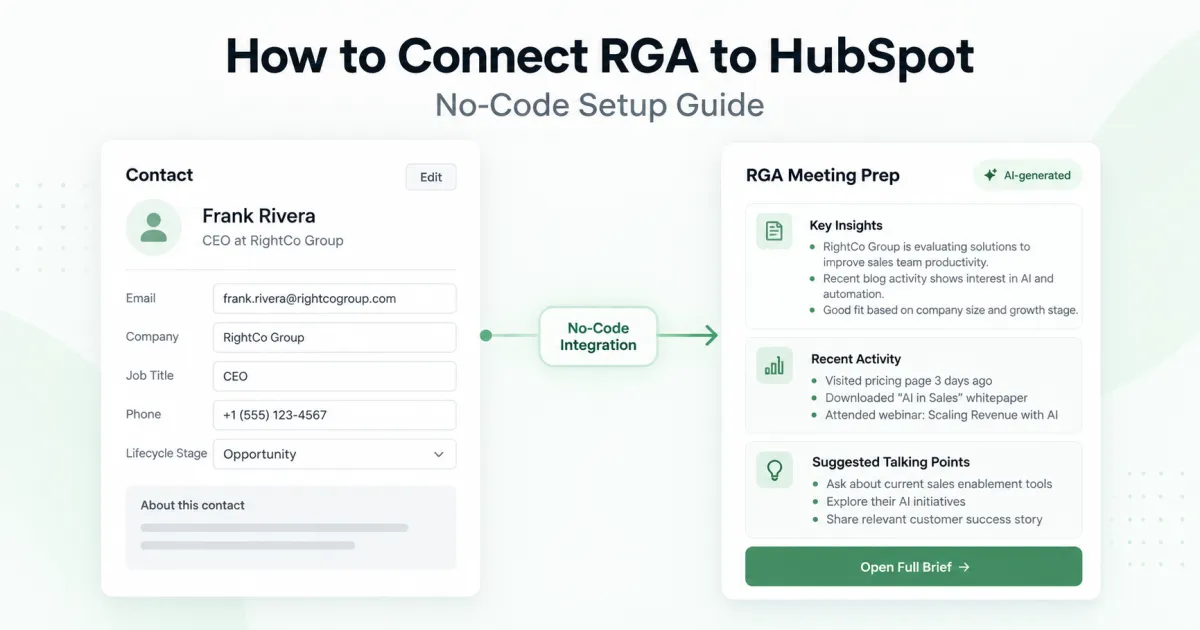
The RGA HubSpot integration is a native card that appears on your HubSpot Contact records (and on Lead records if your portal has HubSpot's leads feature). It pulls the contact and company data already sitting in HubSpot into RGA's Meeting Prepper Agent, then writes the resulting prep brief back to that record as a set of custom properties.
It's worth being clear about what this isn't. It's not a Zapier bridge stitching two tools together with a middleman workflow. It's not a CSV export you have to manually upload somewhere. And it's not a separate browser tab you have to keep open and re-check. The card lives inside the contact record itself, next to the fields your reps already use.
Right now, this native card covers the Meeting Prepper Agent. RGA's Discovery Conversion Agent, which analyzes call transcripts after a discovery call, runs through the RGA web app rather than as an embedded HubSpot card today (more on that in the FAQ section below).
This is what a RGA HubSpot integration actually looks like in practice. A rep opens a Contact record they were already going to open, sees a card in the sidebar next to the fields they already use, and gets a research brief without switching context. Compare that with the more common pattern in AI sales tool HubSpot integration claims, where "integration" means exporting a list, running it through a separate tool, and manually pasting notes back into the CRM afterward. That workflow technically touches HubSpot. It doesn't live inside it.
What You Need Before You Connect It
Two things, and neither one involves engineering time. First, an active RGA subscription, since the HubSpot connection is included with your plan rather than sold as a separate add-on. Second, admin-level access to your HubSpot portal, because authorizing the connection means approving an OAuth consent screen, and that requires permission to install apps.
On the HubSpot side, the Contacts card works across HubSpot hubs and tiers. If your team also wants the card on Lead records, that specifically requires Sales Hub Professional or Enterprise, since those are the tiers that include HubSpot's leads feature at all. If you're not sure which tier you're on, your HubSpot admin can confirm it in a few seconds. It won't block the Contacts connection either way.
Who should be the one to click connect
A HubSpot admin or a RevOps lead should be the one who authorizes the connection, not an individual rep. The OAuth screen requires reviewing and approving the specific scopes RGA is requesting, and that's a decision worth making with full context rather than delegating to whoever happens to be logged in when the tool shows up. The good news: this only happens once for the entire portal. After an admin connects it, the card shows up for everyone in that HubSpot portal automatically, since HubSpot doesn't have a per-user setting for app cards.
That last part matters for how you think about licensing. The card itself is visible portal-wide, but running a prep still requires an active RGA seat. A HubSpot user without one sees a short notice explaining that Meeting Prepper requires a license, along with a button to request access, rather than the prep form itself. RevOps can decide who actually gets a seat without touching HubSpot's own permission settings at all.
How to Connect RGA to HubSpot, Step by Step
The actual flow is short enough to walk through in a paragraph, which is the point. Here's what happens when you connect RGA to HubSpot:
In the RGA web app, go to Settings → Integrations → HubSpot.
Click Connect HubSpot. You'll be redirected to HubSpot's own authorization screen, not a third-party login page.
If you belong to more than one HubSpot account, pick the one you want to connect, then review the requested scopes before approving.
Type "I accept the risk" on HubSpot's unverified-app notice (explained below), then continue.
Click Connect app.
That's the entire authorization. Once it's done, RGA confirms which HubSpot portal the authorization actually belongs to before storing anything, so a connection can't end up bound to the wrong account. From there, the custom properties RGA needs get created in your portal automatically. Nobody has to build a field mapping by hand.
For a click-by-click walkthrough with screenshots, RGA's Quick Start Guide covers the same steps in more detail. This section is meant to tell you what you're deciding, not replace that reference once you're ready to do the setup.
If your organization runs multiple HubSpot portals, or your team already uses OAuth-based app connections for other tools, none of this will feel unfamiliar. It's the same HubSpot OAuth integration pattern HubSpot's own App Marketplace is built around. An admin reviews a defined scope list once and approves it, and every subsequent exchange between the two systems runs on the resulting token rather than a shared password or an API key someone has to rotate by hand.
What HubSpot's "unverified app" warning means
You'll see a notice from HubSpot asking you to type "I accept the risk" before the connection completes. That's expected, and it isn't specific to RGA. HubSpot shows this warning for any app that hasn't yet cleared its HubSpot Marketplace verification review, and it clears automatically once that listing is approved. It's a HubSpot process step, not a signal that something is wrong with the connection you're about to make. We'd rather tell you that upfront than have you second-guess it mid-setup.
Adding the RGA card to your Contact records
Authorizing the connection and adding the card to the record layout are two separate steps. After you connect, open any Contact record, click Customize at the top, then Add cards. Search the card library for RGA and add RGA Meeting Prepper. This is a one-time, portal-wide layout change. Once an admin does it, the card is visible to the whole team on every Contact record, not just the one you happened to be looking at when you added it.
What Access RGA Actually Requests
This is the part most "integrates with HubSpot" claims skip, and it's usually the actual objection standing between you and a decision. RGA's HubSpot connection requests contact read and write access, plus permission to create its own custom contact properties. Optionally, it can also request company and lead read access, which is what powers the Lead-record card if your portal supports it.
That's the full list. RGA does not request deal or timeline scopes. It can't see or touch your deal pipeline, your deal stages, or your activity timeline, because none of that access is part of the OAuth request in the first place. If your team's concern is a new AI vendor getting broad, unscoped access to your CRM, this integration was built specifically to avoid that. The scopes match what the Meeting Prepper Agent actually needs to do its job: read a contact, enrich it, and write prep results back.
Beyond scoping, there's the question of what happens to the data in transit and at rest. Every request the in-CRM card makes is cryptographically signed by HubSpot and checked by RGA before anything moves, and all transmission runs over HTTPS and TLS encryption. The access tokens themselves are encrypted at rest using AES-256-GCM, with the encryption key held in a separate system from the encrypted data, so a compromise of one doesn't automatically expose the other. None of that is unusual for a well-built OAuth integration, but it's worth stating plainly rather than assuming a RevOps or CISO reviewer will take it on faith.
There's also the training-data question, which tends to be the one that actually decides whether a security-conscious buyer signs off. Your HubSpot data is never used to train RGA's underlying AI models. It's used to generate the specific prep brief for the specific contact a rep is researching, and nothing more.
What Happens After You Connect
Once the connection is live, four custom properties get created automatically on your HubSpot contacts: prep session, prep date, prep document link, and sync status. In your property list, they show up as rga_last_prep_session, rga_last_prep_date, rga_prep_doc_url, and rga_sync_status, if you go looking for them. Nobody configures these by hand.
Day to day, the mechanics work like this. A rep opens a Contact record, and the RGA card loads pre-filled with whatever HubSpot already knows: name, email, company, title, LinkedIn, and website. Your entries in HubSpot are never overwritten by the enrichment step, and the exact spelling of the prospect's name and company matters, since RGA's research keys off those two fields specifically. A one-click enrichment step fills in anything missing from public data, without overwriting what's already there. The rep runs Meeting Prep, and the brief comes back in one to two minutes. It opens right inside HubSpot, with the option to view it in a full browser tab or download it as a Word document.
This is on-demand, not constant background syncing. RGA isn't polling your HubSpot data around the clock. Data moves when a rep actually runs a prep, and the result gets written back to that contact so the next person who opens the record sees the latest brief at a glance, without hunting for it somewhere else. The integration is built to keep its footprint on your HubSpot API limits small. A typical Meeting Prep run uses two to three API calls total, covering the contact read and the property update, rather than a background process constantly checking for changes.
If your portal has HubSpot's leads feature active, the same card appears in the lead preview panel instead of a full record page, since that's where HubSpot itself surfaces lead data. A lead is built around its associated contact, so the card reads that contact's details and writes results back to it, the same way it does on a standalone Contact record. If you connected RGA before your team turned on HubSpot's leads feature, a one-time reconnect from the Integrations page grants the additional read scope needed to make that work; existing contact-level access doesn't change.
See It Working in Your Own Pipeline
Reading about the mechanics only gets you so far. If the scopes and the setup flow above answer your main objection, the natural next step is seeing it run against your own HubSpot portal rather than a demo environment loaded with sample data that doesn't look like your pipeline. You can start a 14-day trial and connect it yourself in the five minutes described above. Or book a 30-minute onboarding session, where the RGA team configures the connection against your live HubSpot data and sets up the rest of your team at the same time. Either path lets your Meeting Prepper HubSpot setup run against a real contact you're actually about to call, not a placeholder record. Once you're ready to walk through it click by click, the Quick Start Guide has the full reference, screenshots included.
Frequently Asked Questions About the RGA-HubSpot Integration
Does connecting RGA to HubSpot require a developer or IT ticket? No. The entire connection is a single OAuth authorization completed by a HubSpot admin from one settings page in the RGA app. There's no package to install, no API key to copy and paste, and no engineering ticket required.
What HubSpot plan do I need to use the integration? The Meeting Prepper card on Contact records works across HubSpot tiers. The Lead-record version specifically requires Sales Hub Professional or Enterprise, since those are the plans that include HubSpot's leads feature. If you only need the Contacts card, tier isn't a blocker.
Is my HubSpot data used to train RGA's AI models? No. RGA's HubSpot connection runs over encrypted transmission, and your HubSpot data is never used to train AI models. That's a standing policy across the integration, not something toggled on a per-customer basis.
Does the Discovery Conversion Agent integrate with HubSpot the same way? Not yet. Today, the Meeting Prepper Agent is the piece that runs as a native HubSpot card. The Discovery Conversion Agent, which analyzes a call transcript after a discovery conversation, currently runs in the RGA web app: a rep uploads the transcript there directly. A Discovery card for HubSpot is on RGA's roadmap but isn't live yet, so don't expect deal-level discovery data to sync automatically until that ships.
Can I disconnect the integration later without losing my HubSpot data? Yes. The connection uses standard HubSpot OAuth, and you can revoke it from either the RGA side or the HubSpot side at any time. Disconnecting stops new data from syncing going forward; it doesn't reach back into HubSpot and delete anything RGA already wrote to your contact records, since HubSpot remains the system of record for that data either way.
Will connecting RGA affect our HubSpot API limits? The impact is minimal by design. A typical Meeting Prep run uses two to three API calls, covering the contact read and the property update, and RGA only calls HubSpot when a rep actually runs a prep rather than polling continuously in the background.
Can we control which reps see the RGA card in HubSpot? The card itself shows up portal-wide once an admin adds it, since HubSpot doesn't offer per-user visibility settings for app cards. Actual usage is still gated by RGA license: a rep without a seat sees a request-access prompt instead of the prep form. Larger HubSpot portals on Professional or Enterprise can also use HubSpot's own team-based record views to limit where the card appears visually, though that's a layout choice rather than an access control.